
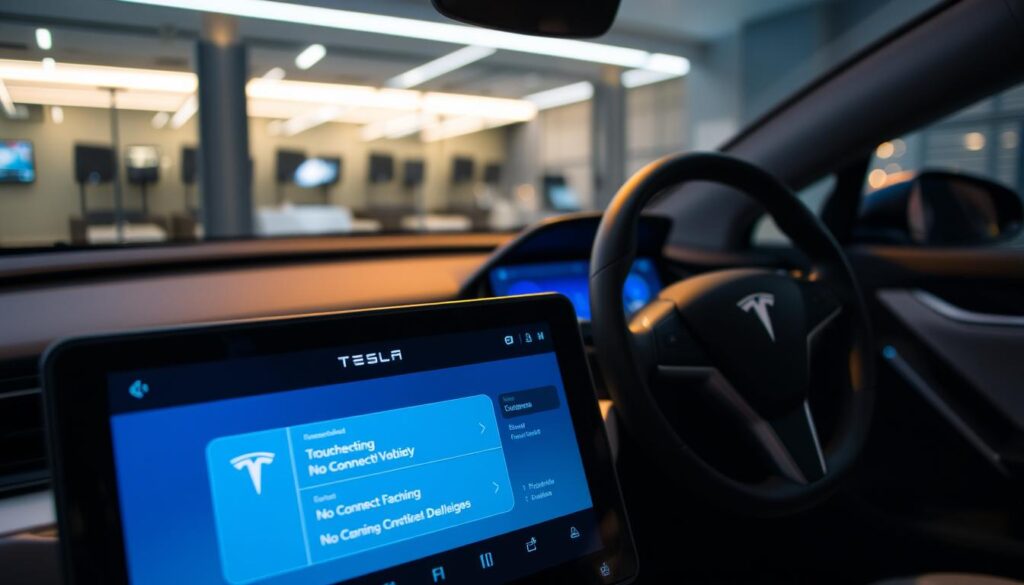
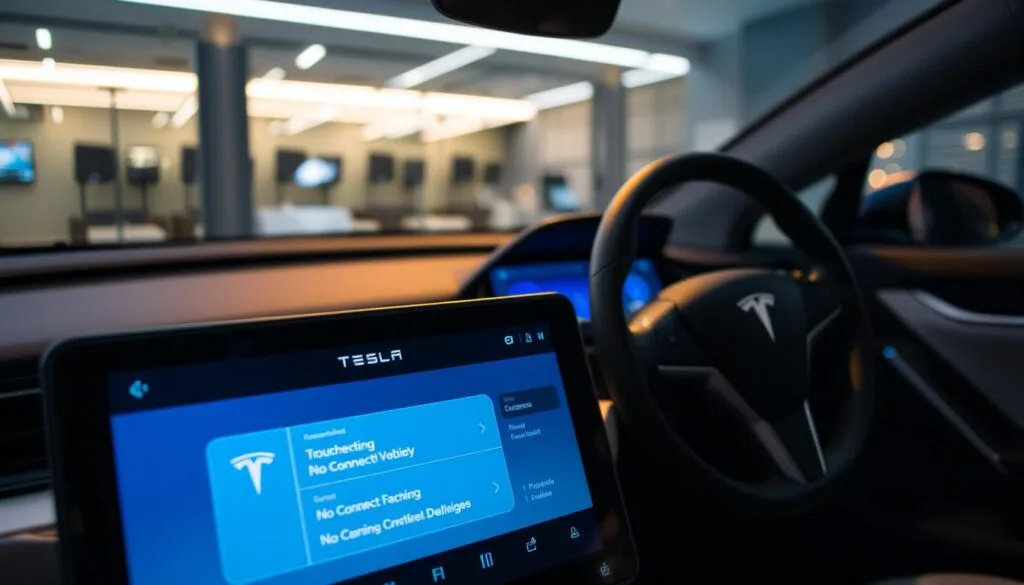
This short guide explains what the on-screen “No Connectivity” alert looks like and how it affects daily use. Drivers in the United States often see missing map updates, stalled streaming, or delayed app commands, while core driving functions stay normal.
Start with quick checks: move to a spot with stronger cellular signal, try a soft reset, and confirm servers are online. Many connection problems come from network drops, software hiccups, or brief backend maintenance.
This article offers an ordered troubleshooting flow that saves time: fast checks first, then touchscreen and steering-wheel resets, followed by Wi‑Fi and app steps, and hardware or support escalation only when needed. Guidance applies across tesla vehicles, though Wi‑Fi features can vary by build date and model. The goal is to restore a stable connection so infotainment and remote features work as expected.
Key Takeaways
- Identify the alert quickly and note which connected features are affected.
- Try simple fixes first: move for better signal and perform a soft reset.
- Follow an ordered diagnostic flow to save time.
- Short server outages can self-resolve without owner action.
- Escalate to support only after hardware checks and UI troubleshooting.
What “No Connectivity” Means in Tesla Vehicles and What Still Works
When the central display can’t reach online services, several convenience features stop updating. In practical terms, the message means the car cannot reliably contact online servers over cellular or Wi‑Fi. That causes degraded performance for services that rely on live data.
Features commonly affected
The most visible losses include navigation tiles that fail to load, missing real-time traffic overlays, stalled music and video streaming services, and delayed app-based remote commands. Cloud-dependent voice functions and streaming catalogs may show spinning loaders or empty lists.
Functions typically not impacted
Core vehicle operation remains intact. Driving, steering, braking, and primary safety systems continue to work even when the connection drops. Owners can drive safely while entertainment and remote features are limited.
How the infotainment system depends on a stable network
The touchscreen acts as the control center. Some modules use local data, but traffic, online maps, and streaming catalogs need a steady network connection to populate content. Common on-screen cues include changing signal icons, gray map areas, or stalled streaming tiles.
- User impact: the car can feel fine to drive but limited for navigation and media.
- Next steps: most cases are signal-related, software-related, or backend-related; the proper fix depends on which group applies.
Safety note: always park before attempting resets or deeper troubleshooting.
Why Does My Tesla Say No Connectivity: Common Issues and Solutions
Use a simple triage to identify the root cause. Classify the alert into three buckets so you know which fix to try first. Most cases are easy to narrow down and do not need support.
Weak cellular signal and coverage dead spots
Poor reception is the top cause. Garages, underground parking, rural stretches, and urban canyons often block the cellular signal. If bars drop or the map tiles are gray, move the car to a different area to test whether the network restores.
Temporary server outages and authentication errors
When backend services have problems, multiple owners report similar symptoms at once. The app may fail to wake the vehicle or remote commands fail even with decent signal bars. Often these outages clear within about 30 minutes; wait-and-retry before deeper troubleshooting.
Software glitches after an update
After an update, some vehicles briefly lose online sessions. A soft reset or full power cycle usually re-establishes connections. If problems continue, verify the update completed in Controls > Software. The most likely ranking: signal first, service interruptions second, and post-update software glitches third.
Quick Checks Before Deep Troubleshooting
A fast visual check can save time. A fast glance at the top-of-screen indicator often tells you whether the vehicle has a usable network link.
Confirm cellular availability on the display
Look at the status area for cellular bars or the Wi‑Fi icon. Note whether the icon is steady or flickering.
Interpreting low bars: low bars usually mean a local signal problem. Moving a short distance can restore service quickly.
Wait-and-retry window and quick checks
Many backend outages clear within about 30 minutes. Use this time for low-risk checks that won’t make the situation worse.
- 30-second assessment: check the top area for steady bars or a stable Wi‑Fi icon.
- Try switching between Maps and a streaming app to see if data begins to load.
- If signal is weak, move the car a short distance and re-check the display.
- Safety note: if driving, pull over before using menus or resetting screens.
Decision rule: if the signal looks good on the display and the connection still fails after about 30 minutes, proceed to touchscreen and steering‑wheel resets in the next section.
Step-by-Step Fixes From the Touchscreen and Steering Wheel
A quick review of in-car settings often restores services without a full reboot. Start at the vehicle display to force a fresh session before trying deeper resets.
Toggle mobile data and review connectivity settings
Open Controls > Safety > Mobile to toggle mobile data. Turning data off then on forces a new handshake with the carrier.
Tip: confirm saved APN or airplane-mode-like toggles are off and that the cellular icon appears on the display.
Soft reset with the two scroll wheels
Press and hold both steering-wheel scroll wheels for about 10 seconds until the screen goes black and restarts. This clears UI sessions without cutting power to vehicle systems.
Allow a couple minutes for services to reconnect; the modem and cloud sessions must renegotiate, so streaming and maps may lag briefly.
Full power cycle and software check
If problems persist after repeated soft resets, perform a full power cycle: park, press the brake, then hold both scroll wheels plus the two upper buttons until the logo appears (about 20 seconds).
Then go to Controls > Software and complete any available updates. Incomplete installs can leave software unstable, so finish the update process before further escalation.
Next step: if cellular remains unreliable, try a known-good Wi‑Fi network to confirm whether the issue is cellular-specific.
Wi‑Fi Network Troubleshooting for Tesla Connectivity Problems
Switching to a strong Wi‑Fi network can reveal whether the problem is cellular or related to in-car sessions.
Requirements and band support: Use 2.4 GHz for broad compatibility; 5 GHz works on Model 3/Y and S/X built after Feb‑2018. Home Wi‑Fi often gives priority for updates and large downloads, so connect before leaving for long drives.
Security and channels: Choose WPA or WPA2 (WEP is not supported). Set the router to a US channel within 1–11; channels 1, 6, and 11 often reduce interference. Ensure the router has internet access so software updates can download.
VPN and UDP notes: The vehicle uses a VPN over UDP. If a router blocks outgoing port 1194 or uses very short UDP timeouts, connections can drop. Allow outgoing UDP and set Unreplied/Assured timeouts to about 60 seconds if the router offers that setting.
Improve weak signal strength: The Wi‑Fi antenna sits in the right-side mirror housing, so reposition the router or add an extender. Park so the right mirror faces the router for the best antenna path.
Quick fixes: Forget the saved Wi‑Fi network, reselect it, and re-enter the password. If the car repeatedly disconnects, try a separate guest SSID to bypass local DLNA or router oddities.
Test in-car: After connecting, load new map tiles, play streaming audio, and open a web page in the browser. When leaving Wi‑Fi range the car switches back to cellular within seconds; streaming may jump to the next track during the handoff.
Tesla App and Phone-Side Causes of Connection Problems
App-side sessions on a phone sometimes stall and block remote commands from reaching the vehicle.
Restart the mobile software
Force-close the app, reopen it, then try a wake or remote command. This forces a new authentication handshake and often restores the session.
Phone settings that interfere
Check background app refresh, battery optimization, mobile data limits, or per-app firewall rules. If the phone blocks background activity the app cannot update vehicle status.
Update hygiene and validation
Keep the mobile app current to avoid mismatches after vehicle updates or backend changes. If problems persist, log out then back in, or test the app on another phone or tablet to isolate device-specific faults.
- Confirm the phone has internet access before blaming the car.
- Try a short restart of the phone when sessions remain stale.
- If the app and vehicle still show persistent errors, contact tesla support for tracked diagnostics.
Hardware-Related Connectivity Issues and When to Contact Tesla Support
If resets and network swaps fail, the problem may lie in the vehicle’s modem or antenna. Hardware-related faults can look like intermittent network outages but repeat across locations and networks.
Warning signs on the display: a flickering or dark connection icon, no Wi‑Fi scan results, persistent “No Connection” messages despite strong signal, and GPS that reports an incorrect position. These clues point toward a modem or antenna fault rather than a carrier interruption.
The Wi‑Fi and cellular antennas are mounted in the right-side mirror housing. Impact damage, water intrusion, or corrosion in that area can degrade reception. Physical inspection for dents or corrosion helps, but avoid disassembling mirrors unless qualified.
When to contact support
Contact Tesla Support after 24 hours of persistent problems despite soft resets, Wi‑Fi/cellular tests, and a power cycle. Also reach out immediately for failed software updates, repeated authentication failures, or total loss of app connection.
- Document times, locations, and affected features for faster service.
- Gather screenshots or photos of the display message and note whether Wi‑Fi works or the app can wake the vehicle.
- Avoid DIY mirror disassembly; let trained technicians handle hardware-level repairs.
Conclusion
Final note: owners who record the area and time of outages often find that coverage, not hardware, is at fault.
Quick checklist: confirm signal and wait briefly for short outages. Then run the touchscreen and steering‑wheel resets. Next, validate Wi‑Fi settings and router compatibility. Finally, verify the app and phone settings before seeking help.
Most events resolve without a service visit. Regular over‑the‑air updates and basic system checks reduce repeat problems for owners.
If a connection problem persists beyond 24 hours, shows repeated update failure, or disables multiple features at once, schedule service through the app for tracked diagnostics.
Practical tip: keep brief notes on time and area patterns. Core vehicle operation usually stays normal, and restoring a stable network improves navigation, streaming, and remote convenience.
FAQ
What does a “No Connectivity” message mean for my Tesla, and which features still work?
The message means the vehicle has lost network access for services that need cellular or Wi‑Fi. Safety and driving systems remain functional, including steering, braking, Autopilot features already running, and basic vehicle controls. Features like navigation updates, live traffic, music streaming, remote locking, and the mobile app may be limited until connection returns.
What are the most common causes of lost connection in Tesla vehicles?
Typical causes include weak cellular signal or local dead zones, temporary Tesla server outages or authentication hiccups, and software bugs after an update. Phone-side problems, router settings, or hardware faults such as a damaged antenna or modem can also produce the error.
How can I quickly check whether the network issue is temporary?
Check the signal bars and network status on the vehicle display, confirm whether the car shows saved Wi‑Fi networks, and wait about 15–30 minutes for transient server or carrier interruptions to clear. Try restarting the mobile app and test Maps or streaming to see if services resume.
What simple touchscreen or steering wheel steps can restore connectivity?
Toggle mobile data and Wi‑Fi in Controls, perform a soft reset by holding both steering‑wheel scroll wheels until the screen reboots, and, if needed, do a full power cycle from Controls > Safety > Power Off. After restarting, check Controls > Software and install any pending updates.
When is connecting to home Wi‑Fi useful, and what should I check?
Home Wi‑Fi helps complete large software updates and stabilizes services in areas with weak cellular. Verify the router supports the vehicle’s band (2.4 GHz is generally more compatible), ensure WPA or WPA2 security, check channel settings, and try a guest network if the main SSID causes issues.
Why might a home router or VPN block Tesla connectivity, and how do I fix it?
VPNs and strict firewall rules can block required ports or UDP traffic and stop authentication. Disable VPNs on the router or allow UDP traffic for Tesla services, temporarily loosen firewall rules, and test by connecting the car to a simple guest network or phone hotspot.
How do I improve weak in‑car Wi‑Fi or cellular signal strength?
Move the car closer to the router, change router placement to reduce obstructions, use extenders or mesh nodes, or park near the passenger‑side mirror area where some vehicles have better antenna reception. Test signal changes by viewing the vehicle’s Wi‑Fi scan and cellular bars.
Could my phone settings affect the Tesla app and remote control features?
Yes. Background app refresh, restricted mobile data, low‑power modes, or outdated app versions can prevent the app from maintaining a session. Force‑close and reopen the Tesla app, enable background activity and mobile data, and update the app from the App Store or Google Play.
What warning signs indicate a hardware problem with the vehicle’s antenna or modem?
Watch for a flickering or blank connectivity icon, failure to scan Wi‑Fi networks, GPS location errors, or persistent loss of service across Wi‑Fi and cellular after troubleshooting. Physical damage, water exposure, or corrosion near antenna housings can cause these symptoms.
When should I contact Tesla Support or schedule service?
Contact Support if problems persist beyond 24 hours, if software updates repeatedly fail, if multiple features remain down after resets, or if you see clear hardware symptoms. Tesla can run diagnostics remotely and advise whether an in‑service center visit is needed.
Will driving out of Wi‑Fi range automatically switch the car back to cellular service?
Yes, the vehicle should fall back to cellular when Wi‑Fi drops. If it does not, check the cellular signal on the display and perform a soft reset. If the car stays offline after leaving Wi‑Fi coverage, it suggests a broader cellular or modem issue that needs further troubleshooting.
How do software updates relate to network errors after installation?
Updates sometimes introduce connectivity glitches during or after installation. Always confirm the update completes fully in Controls > Software. If you lose connection post‑update, try a soft reboot, reconnect to Wi‑Fi, and allow the system time to re‑authenticate with Tesla servers before contacting support.