
This short guide explains why many owners want a familiar iPhone interface for maps, calls, messages, and music without handling their phone while driving. Tesla does not offer native support, so every option is an add-on that trades perfect OEM fit for convenience.
You’ll see three practical paths: browser-based mirroring, a wireless adapter that launches through the car browser, or an external CarPlay screen mounted in the cabin. Each path varies by cost, stability, latency, and how much the original infotainment system looks and works.
This guide targets Model 3/Y owners, frequent commuters, rideshare drivers, and anyone in the U.S. who prefers Apple Maps, Google Maps, Waze, and Siri for a safer driving experience. Set up and test while parked, and keep configuration changes off the road.
Key Takeaways
- Tesla lacks native CarPlay; all solutions are aftermarket add-ons.
- Three real options: browser mirroring, wireless module, or external screen.
- Choose by cost, stability, latency, and visual integration.
- Designed for Model 3/Y drivers, commuters, and rideshare pros.
- Always set up and test features while parked for safety.
Why Tesla Doesn’t Natively Support Apple CarPlay or Android Auto
Tesla keeps a closed infotainment design that blocks standard smartphone integrations. The company builds its own operating system and related software to control updates, energy displays, and Autopilot visuals.
Proprietary control and deep vehicle ties
Tesla’s approach gives the brand end-to-end control over the infotainment roadmap. That control lets them optimize performance and expose vehicle data that third-party apps usually cannot reach.
What this means for drivers
Owners cannot simply enable apple carplay from settings like in many other cars. Today, “apple carplay on the Tesla screen” generally runs as a browser session or mirrored feed, not a native menu item.
Realistic expectations for official support
- Tesla continues to exclude apple carplay and android auto from its stock offerings.
- Aftermarket modules do not commonly alter Tesla firmware.
- Those add-ons provide convenience but fall short of true factory integration.
If you prize Apple’s interface and apps, choose an add-on method; if Tesla-native features matter most, keep the stock UI primary and add CarPlay selectively.
Before You Start: Compatibility, Requirements, and Safety for CarPlay Tesla Setups
Before you install any aftermarket interface, confirm vehicle and phone requirements to avoid surprises.
Vehicle checks and USB requirements
Confirm which model you own: Model 3, Model Y, Model S, or Model X. Each may have different port layouts and firmware behavior.
Verify the USB port offers data transfer, not just power. Many adapters and browser-based setups rely on a functioning usb port for initial handshakes and power.
Why the browser matters
A working tesla browser is often the display layer for these aftermarket interfaces. The browser can render a mirrored session or the adapter’s web UI.
If the browser is blocked or unstable after an update, the solution may fail even if hardware is correct.
Phone prep and pairing
On your phone, enable Bluetooth and Wi‑Fi and install the latest iOS for stable wireless features.
Many wireless solutions use Bluetooth for pairing and a dedicated car Wi‑Fi broadcast from the adapter for media traffic.
Safety, warranty, and updates
Do initial pairing and permission prompts while parked. Use Siri for hands-free actions when driving.
Most plug-in modules do not change vehicle software, but Tesla may deny coverage if an accessory causes damage.
Expect that Tesla software or browser updates can break compatibility; choose vendors with firmware updates and good support apple teams.
- Pre-flight checklist: confirm usb port data support, Bluetooth on, Wi‑Fi on, iOS updated, and photos of ports and software versions.
- Document baseline: take pictures of cables and port labels so troubleshooting is faster if the connection becomes unstable.
How to Use Apple CarPlay in Tesla Using Browser-Based Mirroring Apps
This method uses a third-party mirroring app that serves a web URL. The tesla browser loads that page and shows a CarPlay-like view while the phone stays the true source.
How browser mirroring works on vehicles
The iPhone streams its screen or app session to a URL hosted by the mirroring app. The browser renders the feed so the car display mirrors navigation and music controls.
Step-by-step setup and hotspot connection
Install the mirroring app on your phone and grant casting or screen-record permissions. Note the app-provided URL you will load in the browser.
- Enable Personal Hotspot on the phone and connect the car to that Wi‑Fi network.
- Open the tesla browser and enter the URL from the app; keep the tab active for the session.
- Confirm the connection and test audio and navigation before driving.
Limits, latency, and tips
Expect the car screen to act mainly as a viewer; direct touch controls may be limited. Use Siri, steering-wheel buttons, and preset playlists for safer driving.
Reduce lag by keeping the phone close, closing background apps, and using strong hotspot signal. This setup is low-cost and useful for occasional integration, though it may not match native reliability.
Safety note: configure routes and playlists while parked and rely on voice commands once you drive.
How to Use Wireless Apple CarPlay in Tesla with a USB Adapter or Retrofit Module
Many owners pick a plug-and-play adapter as the best middle-ground: you keep the OEM display while adding familiar apps and voice control. Typical install takes about 15–30 minutes and does not modify vehicle software.
Plug-and-play modules that run through the browser
These modules plug into a data-enabled USB port, power up, and expose a web launcher that the browser opens. The adapter creates a short-range Wi‑Fi plus a Bluetooth pairing for the phone.
Step-by-step setup flow
- Plug the adapter into the correct USB port and wait for its indicator light.
- Pair your phone via Bluetooth with the adapter, then join the adapter Wi‑Fi network.
- Open the browser and launch the CarPlay view. The carplay interface should appear on the tesla screen.
Daily use and stability tips
Keep Bluetooth and Wi‑Fi active on the phone and allow the adapter to reconnect automatically. Many modules enter sleep mode when the vehicle is off to save battery and speed reconnection.
- If the session won’t load, relaunch the browser tab at start of each drive.
- Restart the phone or UI if audio or navigation freezes.
- Update adapter firmware and contact vendor support for persistent faults.
Remember: this adds an infotainment layer for navigation and music, not a factory-grade replacement for vehicle controls.
Using an External CarPlay Screen for a Dedicated Apple CarPlay Experience
A removable dash display gives a full iPhone-style interface that runs separately from the vehicle software. This approach delivers a steady, familiar experience for navigation, calls, and voice control without relying on the browser.
Mounting, power, and pairing basics
Mount the screen securely in the driver’s line of sight and avoid blocking vents or airbags. Route power to a USB or 12V source and hide cables for safety.
Pair your phone with the device per the on-screen prompts. Many portable models, like the Carpuride W103 Pro, use wireless carplay and Bluetooth for quick pairing.
What a dedicated screen means in practice
A dedicated unit runs CarPlay on its own display, while the tesla screen remains available for vehicle controls. This split keeps vehicle features intact and gives you consistent app behavior.
- Best for drivers who want fewer browser quirks and a removable solution.
- Expect reliable navigation, Siri voice control, and most supported apps.
- Tradeoffs: another screen in the cabin and possible audio routing setup for some devices.
If you value consistency and minimal integration with the OEM UI, an external screen is a practical solution for daily driving.
Tesla-Style Android Screen Upgrades with CarPlay Android Auto and Apps
Replacing the center display gives a true Android-powered infotainment option with built-in app stores and native navigation.

What a full replacement delivers
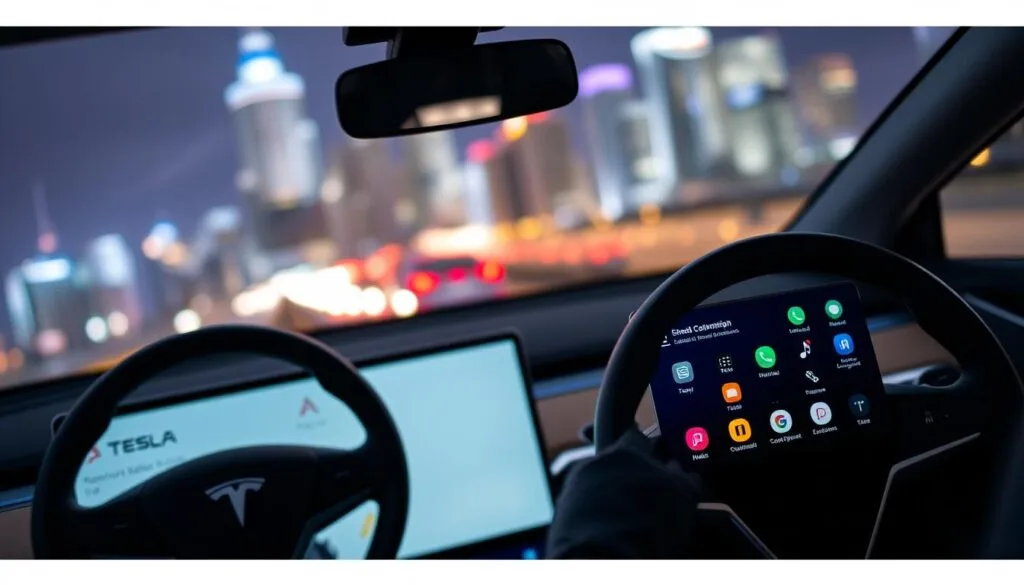
A Tesla-style Android screen upgrade is a full infotainment system replacement that runs Android apps, Apple CarPlay, and android auto natively. That means YouTube, Netflix, Google Maps, and multitasking where supported.
Installation complexity and preserving OEM features
Install time is usually about 1–2 hours and often needs trim removal and cable routing. Professional installation reduces the risk of rattles and keeps steering wheel controls, cameras, and core vehicle settings intact.
Picking the right path: module, Android screen, or external display
Module: lower cost and fast (~15–30 minutes) but relies on the existing screen and may need browser relaunches.
Android screen: higher cost, richer features, and a built-in feel for long-term use.
External display: removable and simple, with minimal interference with OEM integration.
- Cost/time signals: module ~15–30 min; Android screen ~1–2 hrs; prices vary by brand and model.
- Buyer diligence: confirm compatibility by model/year, check return policies and firmware support, and prefer installer-backed kits.
Best for: commuters wanting quick wireless CarPlay pick an adapter; tech enthusiasts who value apps and customization choose an Android screen; drivers who prefer simplicity choose an external display.
Conclusion
You can get apple carplay working with Tesla vehicles today, but it requires third-party integration rather than native support. Practical options include browser mirroring for the lowest cost, wireless modules for most drivers, external CarPlay displays for a standalone fit, and full Android replacements when you want the richest feature set.
Key habits that help: keep your phone Wi‑Fi and Bluetooth on, update firmware and apps, and test the connection while parked before relying on it during driving. Maintain simple settings and allow automatic reconnection where available.
Choose by priority: lowest hassle — wireless module; most OEM look — module or Android screen; lowest cost — mirroring; best stability — external screen or full replacement. For safety, use Siri, set navigation before you move, and avoid interacting with screens while driving. Revisit this guide after Tesla software updates, since browser and connection behavior can change and may need vendor support.
FAQ
Why doesn’t Tesla offer native support for Apple CarPlay or Android Auto?
Tesla uses a proprietary infotainment system and a closed software ecosystem. That design prioritizes Tesla’s own navigation, media, and vehicle controls. Because of that architecture, direct integration with third-party interfaces like CarPlay or Android Auto is not provided by Tesla at this time.
Can drivers expect official CarPlay or Android Auto support from Tesla soon?
Realistic expectations are low for immediate native support. Tesla focuses on its own OS and features. While future updates could change priorities, there’s no confirmed rollout date for built-in CarPlay or Android Auto from Tesla.
Which Tesla models and system requirements matter when trying alternative CarPlay solutions?
Most modern Tesla models with an up-to-date browser and active USB data ports are candidates for aftermarket approaches. Confirm the vehicle’s USB port supports data transfer, that the Tesla browser is functioning, and the car software is current before attempting any workaround.
What iPhone settings should I check for wireless CarPlay attempts?
Enable Wi‑Fi and Bluetooth on the iPhone, allow CarPlay when the phone is locked, and confirm hotspot settings if a local network is needed. Keep battery optimization off for the connection app while you test. These steps help with adapter or browser-based solutions.
Will aftermarket adapters or modules void my Tesla warranty?
Warranty risk varies. Simple plug-and-play USB adapters usually present minimal risk, but permanent hardware modifications or deep system integrations could affect warranty terms. Check Tesla’s warranty policy and consult an authorized service center if unsure.
How does browser-based mirroring deliver a CarPlay-style interface on Tesla screens?
Browser mirroring apps stream a webpage-hosted interface to the Tesla browser, often using the phone as a hotspot and an app-provided URL. The interface shows CarPlay-like controls in the browser window rather than integrating with Tesla’s native UI.
What are typical limitations of browser mirroring solutions?
Expect latency, reduced touch responsiveness, and limited access to microphones or vehicle-data controls. Video and audio may lag, and some interactive gestures won’t map perfectly. Performance improves with strong Wi‑Fi, a dedicated hotspot, and a high-quality phone.
How do USB wireless adapters and retrofit modules work for wireless CarPlay?
Plug-and-play modules connect to a Tesla USB port and run a small host that bridges your phone’s CarPlay connection wirelessly. They usually establish Bluetooth for control and Wi‑Fi for media streaming, exposing a CarPlay session that appears via the Tesla browser or an embedded interface.
What’s the typical setup flow for a USB CarPlay adapter?
Common steps: connect the adapter to a data USB port, power the unit, pair your phone via Bluetooth, join the module’s Wi‑Fi network if required, and then open the Tesla browser or the module’s URL to launch the CarPlay interface. Follow the adapter maker’s prompts for first-time pairing.
Are Carlinkit-style adapters reliable for daily use?
Many users find them practical, but reliability varies by model and firmware. Expect occasional reconnection, relaunch requirements after vehicle sleep, and firmware updates from the adapter vendor. Choose reputable brands and keep adapter firmware current.
How can I reduce reconnection or latency issues when using wireless setups?
Use a stable phone hotspot or a high-quality adapter with recent firmware. Keep the phone charged and disable aggressive power-saving modes. Placing the adapter in a ventilated USB port and minimizing other Bluetooth devices helps maintain a steady link.
What are the benefits of using an external CarPlay screen instead of relying on Tesla’s display?
A dedicated external screen offers a native CarPlay experience with full touch control, lower latency, and consistent audio routing. It avoids browser limits and keeps Tesla’s native UI intact. External units can be portable and removable, reducing warranty concerns.
When is a full infotainment replacement with Android-based hardware worth considering?
Choose a replacement when you want deep Android Auto and CarPlay support, native Android apps, and a Tesla-like large-screen layout. This route offers richer features but involves higher cost, installation complexity, and potential impacts on original vehicle functions if not installed carefully.
What should I consider when choosing between a module, an Android screen, or an external display?
Balance cost, installation difficulty, desired features, and how much you need OEM preservation. Modules and adapters are lower-cost and reversible. Android screens bring full app support but require professional install. External screens are the least invasive and offer straightforward CarPlay access.
Will using browser methods or adapters give full control of phone apps and navigation on the Tesla screen?
No. Browser and adapter solutions replicate the CarPlay interface but often lack full microphone integration, seamless navigation rerouting, or deep vehicle-data access. Audio, calls, and navigation can work, but experience differs from native CarPlay on other OEM systems.
Are there safety or legal concerns when mirroring or running third-party apps on the Tesla display?
Always prioritize safe driving. Avoid interacting with mirrored apps while moving. Some jurisdictions restrict video or app use while driving, so check local laws. Use voice controls and set destinations before departing to reduce distraction.
Which additional keywords relate to these solutions that weren’t in the main structure?
Useful related terms include infotainment system, wireless CarPlay, USB port, Tesla browser, CarPlay interface, wireless adapter, hotspot, Bluetooth pairing, firmware, audio routing, navigation, touchscreen, latency, retrofit module, Carlinkit, external display, Android Auto, aftermarket, warranty, and vehicle integration.