
Simple resets often fix pairing failures, dropped connections, and audio lag. Many drivers get back on the road by toggling phone wireless, deleting a pairing, restarting both devices, then pairing again. This approach acts like a quick “Ctrl-Alt-Delete” for the infotainment unit.
What this guide does: it defines common scenarios—can’t pair, frequent disconnects, no audio, failed calls, and missing contacts—and explains why a structured reset saves time over random menu tapping. You will learn the difference between a quick forget-and-repair and a deeper reboot or master wipe.
The steps apply to most vehicle head units, though menu names vary by make and model. Brand-specific instructions include Ford SYNC by version and reboot tips for GM infotainment, plus iPhone recovery after you forget a device. If the fault is not the wireless link, we cover USB, permissions, software updates, and interference next.
Key Takeaways
- Try a quick forget-and-pair first before doing a full master reset.
- Restarting the phone and head unit often restores normal connections.
- Menu labels differ; check the owner’s manual when needed.
- Brand and phone-specific steps are included later for Ford and GM.
- If problems persist, inspect cables, permissions, and software updates.
Why car Bluetooth connections fail and when a reset is the fastest fix
Drivers usually notice a problem firsthand when music stutters or a call drops mid-conversation. These symptoms are the clearest signs that the link between your phone and the head unit is unstable.
Common symptoms:
- Audio cutting out or delayed/choppy sound.
- Calls dropping, not routing to speakers, or microphone faults.
- Music streaming that won’t start despite the phone showing connected.
- Contacts or call history failing to sync with the vehicle.
What it usually means inside the system: a stuck session, a corrupted device profile, or memory overload in the head unit. Permission mismatches between the phone and vehicle can block features like contacts or call audio.
Typical root causes include software bugs after an update, radio-frequency interference, and too many paired devices filling the saved list.
Power cycling often clears brief faults, but repeated drops usually improve only after pruning old pairings and re-pairing cleanly. If a device once worked and then fails, start with the quick reset steps; if it never connected, verify compatibility and permissions first. For deeper brand-specific tips see common BMW troubleshooting.
Before you reset, confirm the problem is Bluetooth and not your phone or cable
A short triage saves time and keeps saved profiles intact. Start with quick checks that narrow the fault to the head unit or the phone.
Quick checks for USB, power, and basic reconnect attempts
Check the USB cable and port first. Make sure the cable is seated, try a different cable or port, then attempt a reconnect from the radio or infotainment screen.
Power cycle both devices. Turn the vehicle off, open and close the driver door, wait about 30 seconds, then restart. Do the same with the phone to clear stuck sessions.
Make sure permissions are enabled for audio and calls
Open the phone’s settings and confirm Bluetooth is on and the device shows connected. Make sure the car is not linked to another phone.
- Allow Calls and Audio for the vehicle entry in settings.
- Enable contact sharing if address book sync is required.
- Use a physical Phone or Bluetooth shortcut button on the head unit to jump straight to pairing screens.
If symptoms started after a phone OS update or if multiple phones fail in the vehicle, the issue may need a software fix rather than more pairing attempts. If these quick steps do not work, proceed with the reset steps in the next section — that flow is usually faster than repeated manual reconnect attempts.
How To Reset Car Bluetooth Systems without losing everything
Follow a short, ordered sequence that clears stuck pairings while keeping most preferences intact.
Minimal-loss reset: this preserves driver profiles and saved settings while refreshing the wireless handshake. Doing the steps in order avoids re-saving errors and reduces troubleshooting time.
Turn off phone wireless and clear stuck sessions
Step one: switch off Bluetooth on the phone for about 10–15 seconds. This forces any stuck connection to drop so the next negotiation starts clean.
Delete the vehicle profile on the phone
On your phone forget the car bluetooth entry. Removing the old profile stops reuse of corrupted information and prevents auto-reconnect loops.
Remove the phone from the vehicle menu and restart both
Open the vehicle Bluetooth menu and delete the phone from saved devices. Then restart the phone and the vehicle to clear cached state.
Re-pair, confirm code, and test
Put the head unit in discovery mode and start pairing from the phone. Confirm the pairing code matches and accept permission prompts for contacts and audio.
Post-check: place a call, play music, and verify contact sync. If the vehicle supports multiple profiles, pair under the correct driver profile to avoid future conflicts.
Reset steps for Ford SYNC car Bluetooth systems by version
Ford SYNC is a common platform for hands-free calls and streaming, and if pairing stops you’re not alone—this happens regularly and has clear fixes.
SYNC 3 and SYNC 4: go to Settings → Bluetooth → Remove Device. Select the correct device entry and confirm removal. Then restart the vehicle and let it sit for a few minutes so the infotainment modules fully power down before re-pairing.
MyFord Touch: open Phone → Settings → Bluetooth Devices, delete the phone entry, then restart both the phone and the SYNC unit. After both reboot, put the head unit into discovery and pair from the phone.
Older SYNC units: legacy screens or voice prompts are common. Access the Bluetooth settings, delete the device, and recreate the Bluetooth profile so the pairing record is rebuilt. Follow on-screen prompts and confirm permissions.
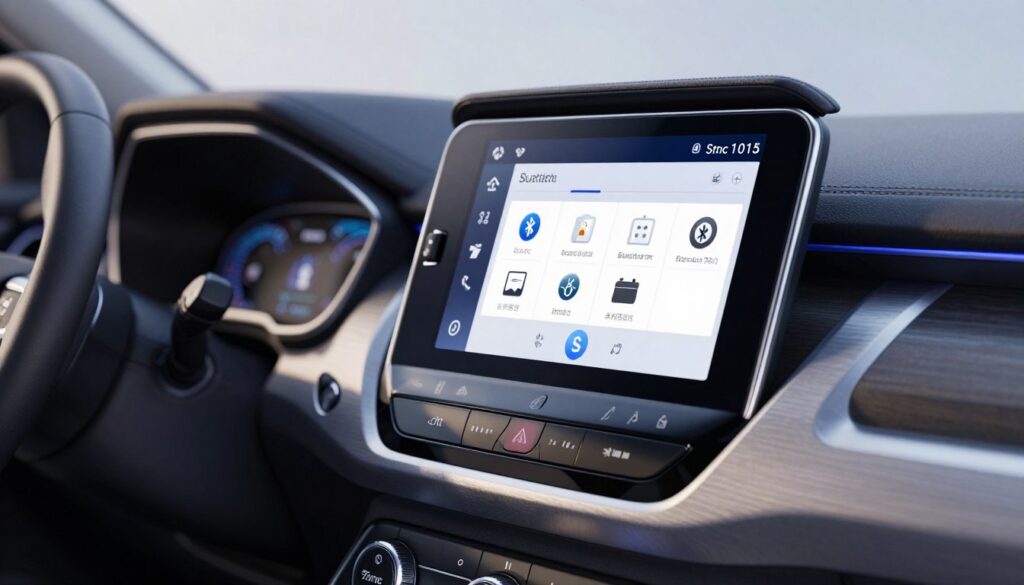
Practical notes: keep the phone near the dash during pairing, avoid pairing while driving, and pause other active devices. Finish with a quick validation checklist: place a call, play music, and confirm contact download. If those pass, you’re ready to move on today.
Rebooting frozen infotainment systems that break Bluetooth pairing
A frozen infotainment stack can look normal while the connectivity module has stopped responding. When that happens, a simple re-start of the module often clears the hang and restores pairing without erasing profiles.
GM MyLink and IntelliLink (2014–2016)
Press and hold the Home and Fast Forward buttons together for at least 10 seconds. Watch for the screen to go dark, then show the logo — that confirms a reboot of the infotainment module.
GM models (2017–2019) and non-Google years (2019–2023)
For 2017–2019 units, press the OnStar call button then hang up to trigger a quick reboot when menus freeze.
For 2019–2023 units without Google built-in, turn the vehicle off, wait a short interval, then apply power again so the module can sleep and restart fully.
Google-built infotainment and when your vehicle isn’t listed
On newer trucks, SUVs, and select EVs with Google, park and press the steering-wheel phone-hangup button for about 10 seconds. If your model is not in these years lists, experts recommend checking for software updates, searching model-specific tutorials, recording the fault on video, and scheduling dealer service if needed.
- Only perform button holds while parked.
- Allow the module a brief recovery period before repeating actions.
- Collect screenshots or video for technician information.
When a master reset or factory reset is necessary for persistent Bluetooth issues
Persistent connection failures that affect multiple phones often mean the head unit needs a full factory refresh. Escalate when repeated drops continue after a clean re-pair, when several phones fail, or when glitches appear after software updates.
Ford SYNC master path: open Settings → General → Master Reset, confirm the prompt, and follow on-screen guidance. The unit will reboot and the screen may cycle while modules restart.
What to expect during reboot time
The reboot can take several minutes. Stay parked and keep the ignition on so the process completes. Do not cut power or try to pair while the unit reboots.
What a full reset clears
- Saved devices and Bluetooth pairings
- User preferences such as radio presets and profiles
- Some navigation favorites depending on model
Practical advice: document presets and key settings before you proceed. If the master action fixes the issue but it returns later, customers should seek dealer-level diagnostics or software updates. Dealership services can check error codes, apply module patches, and provide further service for persistent faults. For similar audio faults see Toyota JBL troubleshooting.
Troubleshooting after the reset if the connection still drops or won’t sync
If connection problems continue after a fresh pairing, run a short checklist that isolates phone and vehicle causes.
Check for software and phone OS updates. Outdated SYNC software or a recent phone update often causes compatibility issues. Make sure the phone is fully updated, then check the vehicle maker’s support site or app (FordPass for Ford owners) for module updates.
Reduce saved devices and re-pair
Too many saved devices can make the head unit switch or fight for connections. Remove old entries on both the phone and the vehicle, then pair only the primary device.
Fix audio delay, distortion, and lag
Refresh the infotainment and the phone by restarting both. If audio problems persist, test with other wireless accessories off and avoid crowded RF environments.
Resolve contacts not syncing
Make sure contact sharing is enabled for the vehicle entry in phone settings. Toggle contact access off and on, reconnect, and force a resync of contacts.
Test with a different phone
Use a second device to isolate whether the issue follows the phone or stays with the vehicle. If the fault stays with the vehicle and updates don’t help, schedule dealer services and bring notes, screenshots, or short videos for faster diagnosis.
Fixing pairing problems after tapping “Forget This Device” on iPhone or deleting the car
Problem summary: Deleting the phone entry on an iPhone often removes the shared keys used in pairing while the vehicle still keeps a stale profile. That mismatch can create a dead-end where neither side recognizes the other during discovery.
Step 1: In the vehicle’s Bluetooth list, remove the iPhone entry as well. Put the head unit into pairing mode using the Phone or Settings menu or the on-screen pairing button. This clears the stale record and re-advertises the vehicle.
Restart and re-pair
On the phone, confirm Bluetooth is on and keep the Bluetooth screen open so discovery stays active. Select the vehicle name when it appears and confirm the matching code on both screens.
Power the phone off, power the vehicle off, wait about ten seconds, then start both and re-enter discovery. If the search keeps running, check that no other phone is connected and remove any stale connected status on other devices.
Last resort and final check
If pairing still fails, consider a Network Settings reset on the iPhone: Settings → General → Reset → Reset Network Settings. This erases Wi‑Fi passwords and all Bluetooth pairings, so save any important information first.
After re-pairing, re-approve permissions for calls, audio, and contacts so hands-free calling and sync work as expected.
Conclusion
End the session by checking that pairing, audio, and phone features all behave normally. Start with a quick verification routine: confirm the problem is the wireless link, perform the minimal-loss refresh (toggle the radio on your phone, remove old profiles on both sides, restart, then pair), and validate with a call and music.
Brand notes: Ford SYNC offers clear remove-device and master paths, while many GM models recover with a targeted infotainment reboot based on year and model.
If faults persist, follow this ladder: quick checks → re-pair → infotainment reboot → factory master reset → dealer service. Keep saved devices limited, drop old phones, and re-pair after major OS or module updates for the most reliable connections over time.
FAQ
What are the most common symptoms that indicate a broken Bluetooth audio or call connection?
Stutters or dropouts during music, one-way audio on calls, device not appearing in the vehicle’s list, repeated pairing failures, and contacts or media not syncing are common signs. These point at pairing or software issues rather than hardware like speakers or the phone mic.
What typical causes lead to failed connections like interference or too many saved devices?
Interference from other wireless devices, corrupted pairing profiles, outdated infotainment or phone software, and hitting the saved-device limit in many head units are frequent culprits. Simple bugs in the radio or phone OS can also block new pairings.
What quick checks should I perform before attempting any reset?
Verify your USB cable is data-capable if using wired CarPlay or Android Auto, toggle phone Bluetooth off and on, check Do Not Disturb and app permissions for contacts and media, and try pairing another phone to isolate the fault.
How do I make sure my phone has the right permissions for audio and calls?
Open your phone’s Bluetooth settings, select the vehicle profile, and enable options for calls, media audio, and contact sharing. On iPhone check Contacts and Bluetooth under Settings; on Android check App permissions and the Bluetooth device profile.
What is the safest way to clear a stuck connection without losing everything?
Turn off Bluetooth on your phone to remove temporary links, delete the vehicle profile from the phone, remove the phone from the head unit’s saved device list, then restart both phone and vehicle and re-pair in discovery mode. This sequence resets the link while preserving other system settings.
How do I remove a Bluetooth profile on my phone and the vehicle’s saved devices list?
On your phone, tap the vehicle name under Bluetooth and choose Forget or Remove. On the head unit, go to Settings > Bluetooth or Phone > Paired Devices, select the phone and choose Delete or Remove. Refer to the owner manual for exact menu names if needed.
After re-pairing, how can I confirm the connection works properly?
Test an outgoing and incoming call, stream a song from your music app, and check that contacts and call history sync. If CarPlay or Android Auto is used, confirm the app connects via USB or wireless and that navigation and voice commands work.
What are the reset steps for Ford SYNC 3 and SYNC 4 units?
Navigate to Settings > Bluetooth, remove devices as needed, then use the system Restart option in Settings > General or perform a soft reboot by holding power and seek buttons on some SYNC 3 units. After reboot, put the system in discovery mode and re-pair.
How do I remove devices and re-pair on SYNC with MyFord Touch?
From the touchscreen select Settings > Phone > Paired Phones, choose the device and delete it. Power-cycle the car system if necessary, then add a phone using the Add a Device option while the phone is in pairing mode.
What should I do for older Ford SYNC units when recreating a Bluetooth profile?
For older units use the phone menu or the vehicle’s Phone settings to delete profiles, then restart both devices. If pairing still fails, consult Ford owner guides for model-specific reset steps or visit a dealer for software updates.
How can I reboot a frozen infotainment system that broke pairing?
Most systems support a soft reboot via a specific button combo or by holding the power/volume knob for 10–20 seconds. Consult the owner manual for the exact method for systems like GM MyLink, IntelliLink, or other manufacturer interfaces.
Are there reboot options for GM MyLink and IntelliLink by model year?
Yes. Many GM units reboot by pressing and holding the power and home/buttons together until the screen resets. Methods vary by year and whether Google built-in or Android-based systems are present, so check the manual for your model.
What if my vehicle isn’t listed in reset instructions for infotainment reboots?
Try a general soft reboot: turn ignition off for a minute, disconnect the 12V power if safe, or hold the screen’s power button longer. If that fails, contact dealership service for a diagnostic and possible software update.
When is a master or factory reset necessary for persistent pairing problems?
Use a full factory reset when repeated pairings, software updates, and soft reboots fail. A master reset clears all saved devices and custom settings and often resolves deep software corruption in the head unit.
What happens during a Ford SYNC master reset and how long does it take?
A SYNC master reset restores factory defaults, erasing paired phones, preset radio stations, and user settings. Reboot time varies but usually completes within a few minutes. You’ll need to reconfigure preferences afterward.
What settings are cleared by a full infotainment reset?
Expect removal of all paired devices, navigation favorites, driver profiles, audio presets, and connected app pairings. Some vehicle systems also clear saved vehicle settings linked to user profiles.
What should I check if connections still drop after a reset?
Verify both phone OS and vehicle software are up to date, reduce the number of stored devices on the head unit, test the phone with another vehicle, and re-pair cleanly. If audio lags or distorts, try a different streaming app and check for signal interference.
How can I fix sound delay, distortion, or lag after re-pairing?
Update phone and infotainment firmware, delete unused Bluetooth profiles, disable other nearby Bluetooth devices, and test with a different codec setting if your phone or head unit offers that option.
Why aren’t my contacts syncing and how do I restore them?
Confirm contact-sharing permission is enabled on the phone and that the vehicle supports contact sync. Remove and re-add the phone profile, then initiate a manual contact sync from the phone or head unit. If issues persist, reboot both devices and try again.
How do I isolate whether the issue is with my phone or the vehicle?
Pair a different phone with the vehicle and pair your phone with another car or a Bluetooth speaker. If the problem follows one device, focus on that device’s Bluetooth settings, software, or hardware.
What steps restore pairing after I tapped “Forget This Device” on an iPhone?
Remove the phone from the vehicle’s paired list, restart both the iPhone and the head unit, enable Bluetooth and set the vehicle into pairing mode, then add the device again. If pairing fails, reset iPhone network settings only as a last resort.
What does resetting iPhone network settings erase and when should I use it?
Resetting network settings clears Wi‑Fi networks, saved passwords, VPN settings, and Bluetooth pairings. Use it when all other pairing attempts fail and after backing up critical Wi‑Fi credentials, since it removes saved connections.