
Keeping accurate dashboard display is vital for luxury vehicle owners. Precision matters while driving. A BMW clock change ensures your schedule stays on track during every commute or road trip across America.
Drivers often find digital interfaces confusing after battery swaps or seasonal adjustments. This guide simplifies every step required to update settings quickly. You can adjust settings without visiting local dealerships or expensive mechanics.
Updating vehicle displays shouldn’t feel like a chore. Modern systems allow drivers to change time on BMW models with just few clicks. Follow instructions provided below to sync internal timers with local standard hours perfectly.
Key Takeaways
- Accurate dashboard timing ensures punctual arrivals for all appointments.
- Most digital adjustments require only few simple menu steps.
- Synchronizing systems helps restore functionality after battery replacements.
- Luxury owners save money by performing basic software tasks themselves.
- Modern interfaces provide intuitive layouts for rapid display updates.
- Seasonal shifts necessitate frequent edits to maintain daily precision.
Why Your BMW Clock Needs Regular Adjustment
Your BMW’s clock needs regular adjustment to stay in sync with changing time zones and daylight saving time. Whether you’re traveling across different regions or adjusting to seasonal time changes, an accurate clock ensures you’re always on schedule.
Having the correct time displayed on your BMW’s dashboard is not just about convenience; it’s also about ensuring you arrive at your destinations on time. Inaccurate timekeeping can lead to missed appointments or being late for important events. Moreover, an up-to-date clock is a reflection of the overall maintenance and attention to detail you give your vehicle.

There are several scenarios where adjusting your BMW’s clock becomes necessary. For instance, during daylight saving time changes, you’ll need to update your clock to reflect the new time. Similarly, when traveling across time zones, adjusting the clock ensures you’re in sync with local time.
| Scenario | Reason for Adjustment | Impact of Not Adjusting |
|---|---|---|
| Daylight Saving Time Changes | To align with local time changes | Potential for being late or missing appointments |
| Traveling Across Time Zones | To stay in sync with local time | Confusion and potential scheduling conflicts |
| After Battery Replacement or System Reset | To reconfigure the vehicle’s systems | Incorrect time displayed, potentially causing inconvenience |
In conclusion, maintaining an accurate clock in your BMW is essential for both practical and aesthetic reasons. Regular adjustments ensure that you’re always on time and that your vehicle remains in optimal condition.
Understanding Your BMW’s Clock System
Understanding the intricacies of your BMW’s clock system is essential for making adjustments and troubleshooting issues. The clock system in BMW vehicles has evolved significantly over the years, with different models and generations incorporating various technologies to display time.
The type of clock system used in your BMW is largely determined by the model year and whether it is equipped with the iDrive infotainment system. Modern BMWs, especially those produced from 2002 onwards, often feature advanced clock systems integrated with iDrive.
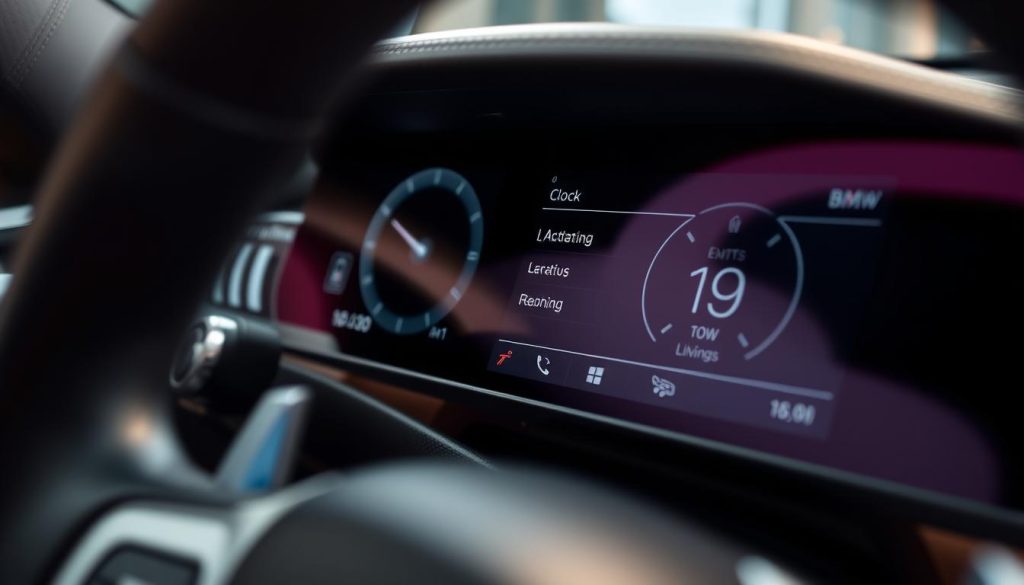
iDrive-Equipped BMW Models (2002-Present)
For BMW models equipped with iDrive, introduced around 2002, the clock settings are typically accessed through the infotainment system’s menu. iDrive is a sophisticated interface that controls various vehicle functions, including navigation, entertainment, and vehicle settings. The clock settings in these models are often synchronized with GPS data for accuracy.
iDrive systems have undergone several updates since their introduction, with different generations offering varying levels of functionality and user interface design. Understanding which version of iDrive your BMW is equipped with can help in navigating the clock settings more effectively.
Non-iDrive BMW Models (Pre-2002 and Select Series)
Older BMW models, particularly those produced before 2002, or certain series that did not come with iDrive, use a different method for setting the clock. These models often rely on physical buttons or a basic onboard computer interface to adjust time settings.
In these vehicles, the clock is usually adjusted using dedicated buttons or through a simple menu system on the dashboard display. The exact method can vary depending on the specific model and its onboard electronics.
GPS-Based Automatic Time Synchronization
Many modern BMWs, especially those with advanced infotainment and navigation systems, offer GPS-based automatic time synchronization. This feature ensures that the vehicle’s clock remains accurate by syncing with GPS signals.
Automatic time synchronization is particularly useful as it eliminates the need for manual adjustments during daylight saving time changes or when traveling across different time zones. It’s an example of how BMW’s technology enhances the driving experience by reducing the need for manual interventions.
How Do I Change the Clock in My BMW?
To adjust the clock in your BMW, you’ll first need to identify the type of interface your vehicle is equipped with. This knowledge is crucial because different BMW models come with different infotainment systems, such as iDrive or more traditional controls.
Identifying Your BMW’s Interface Type
BMW has evolved its infotainment systems over the years, with the iDrive system being a significant advancement. Identifying whether your BMW is equipped with iDrive and which generation it is will guide you through the clock adjustment process.
Checking Your iDrive Generation
If your BMW is equipped with iDrive, determining the generation of iDrive is essential. iDrive versions have varied over the years, with significant updates around 2012, 2016, and 2020. The generation of iDrive affects the menu structure and, consequently, how you access and adjust the clock settings.
To check your iDrive generation, you can refer to your vehicle’s documentation or look for the iDrive version in the settings menu on your infotainment screen.
Determining Available Clock Settings
Once you’ve identified your iDrive generation, you can determine the available clock settings. Newer iDrive versions offer more intuitive and flexible time adjustment options, including automatic time synchronization via GPS.
Essential Information Before Starting
Before you start adjusting the clock, there are a few essential considerations to keep in mind to ensure the process is smooth and accurate.
Time Zone Considerations
It’s crucial to ensure that your BMW’s clock is set to the correct time zone. If you’re traveling or have recently moved, updating the time zone is vital for maintaining the accuracy of your vehicle’s clock.
Date Format Settings
In addition to adjusting the time, you may also want to verify that the date format is set correctly. BMW’s iDrive systems typically allow you to choose between different date formats, such as MM/DD/YYYY or DD/MM/YYYY.
By understanding your BMW’s interface and considering these essential settings, you’ll be well-prepared to adjust the clock accurately and efficiently.
Step-by-Step: Adjusting Time on iDrive 7.0 and 8.0 Systems
For BMW owners with iDrive 7.0 and 8.0 systems, adjusting the clock is a straightforward process that can be completed in a few steps. This guide will walk you through accessing the settings menu, navigating to date and time options, and manually adjusting the time to ensure your BMW’s clock is always accurate.
Step 1: Access the Settings Menu from the Home Screen
To begin, start your BMW and ensure it’s in a safe location. Navigate to the home screen on your iDrive system. Look for the “Settings” icon, typically represented by a gear or cog symbol. Tap or click on this icon to enter the settings menu.
Step 2: Navigate to General Settings
Once in the settings menu, scroll down or navigate to the “General” settings option. This section contains various general settings for your iDrive system, including date and time adjustments.
Step 3: Select Date and Time Options
Within the General settings, find and select the “Date and Time” option. This will open a submenu where you can adjust the time and date settings on your BMW.
Disabling Automatic Time
If your BMW is set to automatically synchronize the time via GPS or another source, you may need to disable this feature to make manual adjustments. Look for an option like “Automatic Time Zone” or “Automatic Date and Time” and toggle it off.
Manual Time Entry
With automatic time disabled, you can now manually adjust the time. Select the “Set Time” or “Time” option to enter the correct time.
Step 4: Adjust Hours and Minutes
Use the on-screen controls or the iDrive controller to adjust the hours and minutes. Make sure to pay attention to AM/PM settings if your system uses a 12-hour clock format.
Step 5: Confirm and Save Your Changes
After entering the correct time, confirm your changes by selecting “OK” or “Save”. Your BMW’s clock should now display the updated time. For more detailed guides and troubleshooting tips, you can refer to our comprehensive guide on changing the clock in a BMW.
Step-by-Step: Changing Time on iDrive 5.0 and 6.0 Systems
Updating the clock on your BMW with iDrive 5.0 or 6.0 is a quick process that involves accessing the settings menu. This guide will walk you through the steps to adjust the time on your vehicle’s infotainment system.
Step 1: Press the iDrive Controller Menu Button
To begin, press the iDrive controller menu button to access the main menu. This button is typically located on the center console of your BMW.
Step 2: Scroll to Settings Using the Controller
Using the iDrive controller, scroll through the menu options until you reach the “Settings” menu. Select it to proceed.
Step 3: Access Time and Date Settings
Within the Settings menu, navigate to the “Time and Date” settings. This is where you can adjust the clock on your BMW.
Using the Rotary Dial
The iDrive controller features a rotary dial that allows you to scroll through options. Use this dial to select the “Time and Date” settings.
Navigating Sub-Menus
Once in the “Time and Date” menu, you may need to navigate through sub-menus to find the specific option for adjusting the time.
Step 4: Modify the Time Display
After accessing the time settings, you can modify the time display to reflect the correct time. Ensure you save your changes.
Step 5: Exit and Verify Changes
Once you’ve adjusted the time, exit the settings menu and verify that the changes have been saved and are displayed correctly on your BMW’s infotainment system.
Here’s a summary of the steps in a tabular format for quick reference:
| Step | Description |
|---|---|
| 1 | Press the iDrive Controller Menu Button |
| 2 | Scroll to Settings Using the Controller |
| 3 | Access Time and Date Settings |
| 4 | Modify the Time Display |
| 5 | Exit and Verify Changes |
Adjusting the Clock on Older BMW Models Without iDrive
Adjusting the clock on older BMWs that don’t have iDrive is straightforward once you know the steps. Older BMW models may lack the modern iDrive system, but they still offer functional ways to adjust the clock. Here, we’ll explore the methods to adjust the clock on these vehicles.
Using the Onboard Computer Button Method
The onboard computer button method is a common way to adjust settings in older BMWs. To start, you need to locate the BC (onboard computer) button on your dashboard.
Locating the BC Button on Your Dashboard
The BC button is typically found on the dashboard, near the instrument cluster. It’s usually labeled “BC” and is used to navigate through various menu options.
Cycling Through Menu Options
Press the BC button repeatedly to cycle through the menu options until you reach the clock settings. Once you see the clock display, you can adjust the hours and minutes using the corresponding controls.
Dashboard Instrument Cluster Clock Adjustment
Some older BMW models allow you to adjust the clock directly from the instrument cluster.
Pressing and Holding the Clock Button
To adjust the clock, press and hold the clock button until the display starts flashing. You can then use the controls to set the correct time.
Using Steering Wheel Controls
In some models, steering wheel controls can be used to adjust the clock. Check your vehicle’s manual to see if this feature is available in your BMW.
Radio Display Clock Settings
For some older BMW models, the clock can also be adjusted through the radio display. Navigate to the radio settings menu and look for the clock or time settings option.
Key Steps to Adjust the Clock on Older BMW Models:
- Identify the method available in your vehicle (onboard computer button, instrument cluster, or radio display).
- Follow the specific steps for your vehicle’s method.
- Use the controls provided to adjust the hours and minutes.
- Save your changes according to the on-screen instructions or your vehicle’s manual.
By following these steps, you can easily adjust the clock on your older BMW model without iDrive. Ensure you consult your vehicle’s manual for specific instructions tailored to your model.
Troubleshooting BMW Clock Problems
The clock in your BMW is more than just a time-telling device; it’s a feature that, when malfunctioning, can indicate deeper issues. Understanding how to troubleshoot common BMW clock problems can save you time and potentially prevent more serious issues from developing.
Clock Automatically Resets After Driving
If your BMW’s clock resets after driving, it could be due to issues related to the battery or electrical system, or problems with the GPS signal.
Battery and Electrical System Issues
A weak or failing battery can cause various electrical malfunctions, including issues with the clock. Ensure your battery is in good condition and consider having it tested if you’re experiencing frequent resets.
GPS Signal Problems
A poor GPS signal can affect your BMW’s ability to synchronize the clock correctly. Check for any software updates related to GPS functionality.
| Potential Cause | Symptoms | Solution |
|---|---|---|
| Battery Issues | Clock resets after driving | Check and replace the battery if necessary |
| GPS Signal Problems | Inaccurate timekeeping | Update GPS software or check for signal obstructions |
Cannot Access Time Settings Menu
Sometimes, you might find yourself unable to access the time settings menu in your BMW. This could be due to software issues or system locks.
Software Update Requirements
Ensure your BMW’s software is up to date, as updates often resolve known issues, including those related to the iDrive system.
System Lock or Parental Controls
If your vehicle is equipped with parental controls or a system lock, check if these features are restricting access to the time settings.
Time Displays Incorrectly Despite Correct Settings
If the time on your BMW’s display is incorrect despite having the correct settings, the issue might lie in the time zone configuration or daylight saving time settings.
Time Zone Configuration Errors
Verify that your BMW is set to the correct time zone. An incorrect time zone setting can cause the clock to display the wrong time.
Daylight Saving Time Settings
Ensure that your BMW is configured to automatically adjust for daylight saving time if this feature is applicable in your region.
When to Seek Professional Assistance
If you’ve tried troubleshooting and the issue persists, it may be time to seek professional assistance. BMW dealerships and certified mechanics have the tools and expertise to diagnose and fix complex problems.
Conclusion
Accurate timekeeping is essential for a seamless driving experience in your BMW. As discussed throughout this guide, adjusting the clock in your BMW is a straightforward process that varies depending on the model and its interface type.
By following the step-by-step instructions provided for different iDrive systems and older models, you can easily perform a BMW clock change or BMW time adjustment whenever needed.
Keeping your BMW’s clock accurate is not just about convenience; it also ensures that you stay on schedule and make the most out of your vehicle’s advanced features.
Whether you’re driving a modern BMW with iDrive or an older model, referring to this guide will help you make the necessary adjustments with ease.
Stay on time and enjoy a more precise and enjoyable driving experience with your BMW by keeping its clock accurately set.
FAQ
Does my BMW automatically update for Daylight Saving Time?
Most modern BMW models equipped with iDrive 5.0 or later feature an Automatic Time Setting option. If this feature is enabled, the vehicle uses GPS synchronization and BMW ConnectedDrive data to adjust the clock automatically when Daylight Saving Time begins or ends. Older models without iDrive or those with iDrive 4.0 and earlier typically require a manual adjustment through the settings menu or the instrument cluster.
Why does my BMW clock keep resetting to the wrong time after I turn off the engine?
If your clock frequently resets, it is often a symptom of an underlying electrical system issue. The most common cause is a weakening AGM battery or a faulty Intelligent Battery Sensor (IBS). When the battery voltage drops below a certain threshold, the onboard computer may lose power to its volatile memory. We recommend having your BMW 3 Series or X5 battery tested at an authorized service center.
How can I tell which version of iDrive is installed in my vehicle?
You can identify your iDrive generation by the visual layout of the Home Screen. iDrive 7.0 (found in many 2019+ models) features a digital, customizable layout with “Live” tiles, while iDrive 6.0 utilizes a horizontal “tile” interface. Older BMW models from the early 2010s typically use iDrive 4.0 or 5.0, which feature a list-based or simplified icon menu. Checking your Owner’s Manual or the BMW Navigation map version in the settings can also confirm the hardware generation.
How do I adjust the clock on an older BMW model like the E46 or E90 without a navigation screen?
For classic models such as the BMW 3 Series (E46), you can adjust the time using the small plunger knobs located on the instrument cluster. Press and hold the right-hand knob until the time flashes, then twist it to adjust. For E90 models without iDrive, use the BC (Board Computer) button on the turn signal stalk to navigate to the clock icon, then use the rocker switch to set the correct hours and minutes.
Why is the “Set Time Automatically” checkbox grayed out in my settings?
This option may be unavailable if your vehicle has lost its GPS signal or if your BMW ConnectedDrive subscription has lapsed in certain regions. Ensure your vehicle is in an open area with a clear view of the sky. If the issue persists, a hard reset of the iDrive system—performed by holding the volume knob for 30 seconds—may restore GPS synchronization.
Can I change the date format from MM/DD/YYYY to DD/MM/YYYY?
Yes, BMW allows for extensive localization. Within the General Settings menu under Date and Time, you will find a Format sub-menu. Here, you can select your preferred Date Format and toggle between a 12-hour and 24-hour clock display to match your preference.
Does traveling across state lines affect my BMW’s clock?
If your BMW is equipped with iDrive 7.0 or iDrive 8.0 and the Automatic Time Zone setting is enabled, the vehicle will use GPS data to detect when you have crossed into a new time zone and update the dashboard display in real-time. This is particularly useful for long-distance travel in a BMW 5 Series or X7.