
Goal: Restore audio and multimedia function without a security code by using iDrive reboot and basic fuse steps common on U.S. models.
The guide explains the difference between the radio, infotainment, and the iDrive system, so readers know the steps affect the whole head unit — not just AM/FM. It sets clear expectations: a reboot can fix software glitches but cannot repair broken amplifiers or speakers.
Two main paths are previewed: a quick soft reboot for newer iDrive setups and a fuse-based power cut for older vehicles when the unit is unresponsive. Safety is stressed — perform checks in a parked vehicle and avoid attempting resets while driving.
Before any reset, run quick pre-checks for phone, USB, Bluetooth, and source settings. If faults are intermittent, record a short video; technician diagnosis is faster with visual evidence. The piece also notes the screen behavior during reboot: brief blackout, then logo and return.
Key Takeaways
- Purpose: Recover audio and infotainment without a code.
- Know the difference between radio, infotainment, and iDrive.
- Try simple pre-checks before a full reset.
- Use a soft reboot for modern iDrive; use a fuse reset for older units.
- Do resets only while parked for safety.
- Document intermittent problems with a short video for faster service.
When a BMW Radio/System Reset Is the Right Fix
Intermittent glitches in the head unit usually point at software faults rather than broken hardware. A quick reboot is a safe first step when problems start suddenly or follow a phone or app update.
Common signs include crackling or distorted audio, laggy or unresponsive button inputs, an iDrive screen that freezes mid-menu, and loss of bluetooth connectivity. These symptoms often come and go and may affect only one source.
What a reboot can solve
Modern idrive software runs many modules. A restart clears temporary memory faults, reloads modules, and restores normal routing for audio and navigation without changing user settings.
Short outages that last a few seconds, or menus that load but produce no sound, are ideal cases for a reboot. Bluetooth-specific signs—calls connect but no sound, streaming fails, or repeated drops—also respond well to a restart.
- Good candidate: sudden, intermittent issues after an update or phone change.
- Not a fix: no power at all or a screen that never lights up—those point to wiring or module failure.
Quick Checks Before You Reset Anything
A quick set of checks can often resolve audio and connectivity hiccups without a full unit reboot. Do these while parked for safety and stable power.
Rule out simple causes
Unplug the phone from the USB and reconnect it. A loose cable or bad handshake is a common cause of brief issues.
Restart the phone. Many connection faults follow a recent phone update and clear after a reboot.
Confirm Bluetooth and source settings
Open iDrive settings and confirm the active audio source (Bluetooth, USB, or radio). Check volume on both the phone and vehicle.
Verify the phone shows “connected for audio.” If it is stuck, toggle Bluetooth off and on and try pairing again.
Check vehicle power state
Note: iDrive behavior changes between accessory mode and when the engine is running. Some resets work best with the engine off.
- If reconnecting restores audio, no reset is needed.
- If problems persist after these steps, proceed with the next reset method.
Identify Your BMW iDrive Version and Setup
Confirming the iDrive generation helps pick the correct reboot path and avoids unnecessary steps. Newer iDrive models (7.0 and later) usually use a soft reboot via the volume/power button. Older units often need a deeper power cut, such as removing an audio fuse.
Newer models with iDrive 7.0 or later
Look for modern graphics, fast menus, and integrated phone and app features. If the unit responds quickly and menus scroll smoothly, it is likely a current bmw idrive generation.
Older models with iDrive 6.0 or earlier
Slower menus, simpler screens, and limited connectivity point to an older model. These setups may require a fuse-based power interruption rather than a long press on the power button.
Why screen behavior matters
Watch the display during a reboot. A proper restart usually blacks the screen briefly, then shows a logo and returns to the menu. If the screen never changes, the unit may lack power or the reboot did not trigger.
- Note: navigation, camera views, and audio all run through the same idrive system.
- Tip: a reboot typically will not restore factory settings or erase paired devices.
- Upgrade option: older models can get a higher-resolution display retrofit for improved usability.
How to Reset Your BMW Car Radio System
Decide whether a brief software restart or a full power interruption fits the symptom you see.
Soft reboot vs deeper reset: what you’re actually doing
Soft reboot: a restart of the infotainment head unit so the operating software reloads. This is like restarting a computer and usually preserves presets and pairings.
Deeper reset: removing power (for example by pulling the audio fuse) long enough for modules and capacitors to fully discharge. This forces a clean restart of all audio modules and related wiring interfaces.

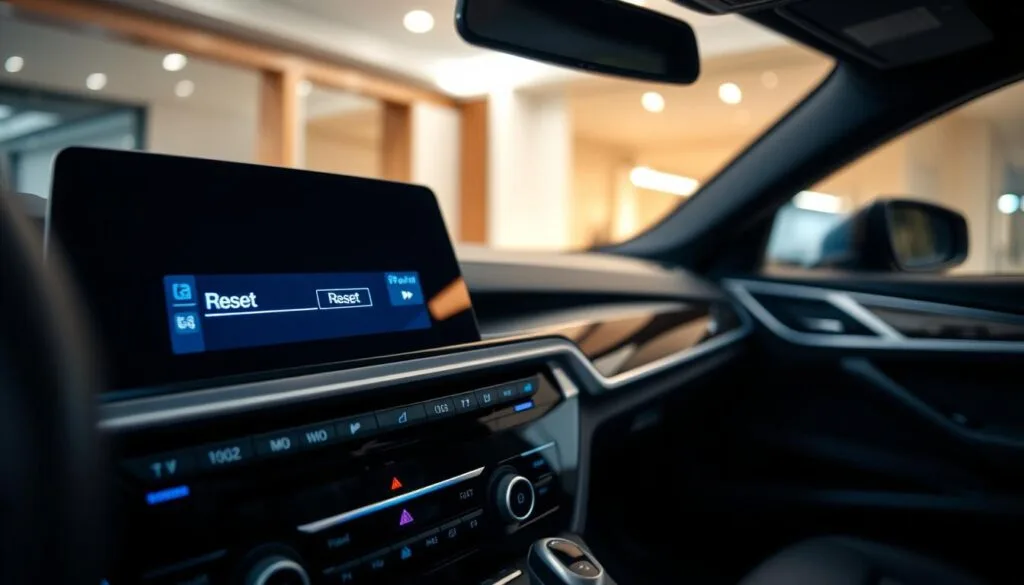
Safety notes before pressing and holding any button
Perform these steps while parked and with the gear in Park. Avoid holding buttons while driving; screen changes and distractions are unpredictable.
- Press and hold the power or volume control intentionally for the recommended seconds. If the display does not react, stop and move to the next troubleshooting step.
- Expect soft reboots to finish in under a minute. Deeper power cuts need several minutes for full discharge.
- Most soft resets do not erase factory presets, but be ready to reselect sources or reconnect devices if needed.
Reset Method for Newer BMW iDrive Systems
Begin this sequence with the engine off; a stable power baseline improves reboot success. Park safely, put the transmission in Park, and switch the engine off. This reduces background power events and gives the head unit a clean state for the reboot.
Press and hold the power/volume control
Press and hold the volume button continuously for about 30 seconds. Keep holding even if the unit seems unresponsive. Do not release early; a full button seconds cycle is required for the reboot to register.
What to expect during the reboot
The screen will usually go black, then the display returns with a splash or main menu. If the blackout is faster or slower than expected, keep holding until the cycle completes. If nothing happens after a full cycle, move on to troubleshooting steps.
After the reboot — quick checks
- Confirm audio plays from radio, Bluetooth, and USB.
- Test the volume button and other controls for responsiveness.
- Open navigation and verify map and prompts load normally.
- Rotate or push the idrive controller and tap menus to check for lag.
Real-world verification: After confirming basic function while parked, take a short drive around the block. This ensures the idrive system and audio remain stable under normal driving conditions.
Reset Method for Older BMW iDrive Systems
Older models that stay frozen or produce no sound typically need a full power removal at the fuse box. This method is best for idrive units (6.0 and earlier) that won’t respond to a normal reboot or show persistent audio issues.
Locate the fuse box using the owner’s manual for your model
Use the owner’s manual to find the correct fuse box and the specific fuse tied to the audio and infotainment system. Layouts vary by model, so verify the label before removing anything.
Remove the audio system fuse and wait 10-15 minutes
Turn the vehicle off and remove only the specified fuse. Use a fuse puller if available. Wait 10–15 minutes so modules and capacitors fully lose power — this time allows a proper module discharge.
Reinsert the fuse and verify the unit fully reboots
Reinsert the fuse, then power the vehicle and watch the idrive screen. The idrive system should show a normal startup, audio sources should load, and controls must respond.
- Confirm: audio plays from radio, Bluetooth, and USB.
- Note: clocks or preferences may need resync and some Bluetooth pairings might require reconnection.
- Escalate: if the fuse blows again or the unit won’t boot, the issue may be deeper and needs professional service.
Troubleshooting If the Reset Didn’t Fix the Issue
When problems keep returning, a methodical check of updates, pairings, and wiring saves time.
Confirm software and update status
Check for available software updates for the head unit. Manufacturers release patches that often fix bugs affecting stability.
Use the vehicle menu or visit a dealer if an over-the-air update is not visible.
Bluetooth and phone pairing problems after updates
Phone updates can break bluetooth connectivity until the car gets a matching software update. Remove the device from iDrive, delete the car from the phone, reboot both, then pair again.
Frozen display, unresponsive buttons, and wiring checks
If the screen or button actions keep locking, note when it happens (temperature, minutes driven, specific menu). That pattern helps decide if it’s software or hardware.
Inspect connectors, amplifier leads, and USB cables if faults persist. Loose wiring often mimics system issues.
Final tips before visiting a technician
- Record a short video of the fault with date/time and conditions.
- Verify navigation, camera, and audio together—multi-feature glitches usually point at the head unit software.
- Consider a platform upgrade if the unit age causes repeated failures.
When to Contact a Technician or BMW Service Center
If simple steps fail, knowing when to call professional help saves time and money. Repeated freezes, loss of sound from every source, or a screen that never powers on are clear escalation signs.
Document intermittent issues carefully. Take a short video of the display and screen behavior while the fault happens. Note whether the car was in accessory mode or the engine was running, which source was active, and how long the fault took to appear.
What to bring and why it matters
Bring the model and year, the idrive generation if known, recent updates, and a description of whether navigation, calls, and audio fail together. These details let a technician narrow whether the fault sits in software, head unit hardware, amplifier, or wiring.
When a professional repair is safer
- Electrical smell, repeated fuse failures, or warning lights present immediate risk.
- If connectors or wiring may be damaged, a shop can test power and MOST-bus links with proper tools.
- Persistent faults after a reset or those that return quickly warrant dealer diagnostics.
Practical improvement path: consider legitimate upgrades—larger displays, Enhanced Bluetooth, or map updates—if the main pain point is aging interface hardware. These options can improve driving experience and owner experience overall.
Conclusion
A simple decision path makes troubleshooting efficient.
Start with quick checks: confirm sources, phone pairing, and Bluetooth settings before any major reset. Then pick the correct reboot method based on idrive generation.
For newer models, press hold the volume/power control for about 30 seconds until the screen goes black and the display returns. For older units, remove the audio fuse, wait 10–15 minutes, then reinstall to clear all power and force a full restart.
Success looks like stable audio playback, responsive menus, and normal navigation behavior during driving. If faults persist, prioritize software updates, re-pair devices, and seek service for wiring or power faults.
Practical takeaway: a short, step-based approach will resolve most idrive audio issues without guessing.
FAQ
What’s the quickest way to reboot an iDrive head unit without losing settings?
Press and hold the volume/power button for about 20–30 seconds while the ignition is on or the engine is running. The screen should go black and then restart. This soft reboot clears temporary software glitches but keeps paired phones, navigation memory, and most settings intact.
When is a full power cycle better than a soft reboot?
Use a full power cycle when the soft reboot fails or the display remains frozen. Turn the engine off, wait a few minutes, then restart the vehicle. For older models you may remove the audio fuse for 10–15 minutes. A full power cycle helps clear deeper power-state errors.
How do I know if a reset will actually fix the problem?
Look for intermittent audio dropouts, frozen screens, or random reboots. If controls respond inconsistently or Bluetooth audio repeatedly cuts out, a reset often resolves the issue. If hardware damage or persistent errors remain, further diagnosis is needed.
Could a reset erase navigation or phone pairings?
A soft reboot normally preserves navigation destinations and Bluetooth pairings. A deeper reset that removes power or uses a factory reset option can erase stored data. Back up contacts and important settings before doing a fuse pull or factory restore.
What precautions should I take before pressing and holding buttons?
Park safely and engage the parking brake. Avoid holding the button while driving. Confirm the vehicle battery is in good condition. If uncertain, have a passenger perform the step or contact a service center to avoid distractions while driving.
How do I identify which iDrive version my vehicle uses?
Check the owner’s manual, the iDrive “About” screen in Settings, or your original purchase documentation. iDrive 7 and later have different menus and update methods than iDrive 6 or earlier, which affects recommended reset steps.
What’s the proper method for newer iDrive units?
For newer units: turn off the engine for a clean power cycle if needed, then press and hold the volume/power knob for roughly 20–30 seconds. Wait for the screen to go dark and for the BMW logo to appear. After reboot, verify audio, navigation, and controller responsiveness.
What if my older model won’t reboot with the power button?
Locate the audio/system fuse using the owner’s manual, remove it for 10–15 minutes, then reinsert it. This cuts power fully to the unit and forces a complete restart. If unsure, ask a technician to avoid damaging the electrical system.
Why does my screen behave differently during a reset?
Screen behavior depends on firmware and power state. Newer screens often go black briefly then reload the GUI. Older displays may flicker or take longer to reinitialize. If the screen stays black or shows artifacts after a reset, software corruption or hardware faults may exist.
What should I check before trying any reset?
Rule out simple causes: disconnect USB drives, remove faulty media, retry phone reconnection, and confirm correct audio source selection. Also verify Bluetooth settings and whether ignition is in accessory or run mode—some functions differ by power state.
My Bluetooth pairing failed after an update — what now?
Delete the pairing on both the phone and the iDrive unit, reboot both devices, then re-pair. If problems persist, check for pending iDrive or phone OS updates. Updates often fix compatibility bugs introduced by new firmware or apps.
The unit rebooted but controls remain unresponsive — what can I try?
Check physical controls like the volume knob and iDrive controller for debris or damage. Inspect fuses and battery voltage. If the display is frozen while buttons respond, request a software update or consult a technician for deeper diagnostics.
When should I contact a BMW service center or technician?
Seek professional help for recurring faults, hardware noises, water damage, or if a reset and software update don’t resolve issues. Document the fault: time, conditions, error messages, and steps you’ve tried. This speeds diagnosis and helps technicians reproduce the problem.
Can software updates fix persistent bugs after a reset?
Yes. Installing the latest iDrive firmware and map updates often resolves bugs, improves Bluetooth stability, and restores proper audio routing. Check BMW ConnectedDrive or visit a dealer for the official update procedure.
Is it safe to perform these resets while driving?
No. Always perform reboots when parked. Holding power or accessing fuses while driving creates a safety risk. If audio issues affect attention or driving, pull over safely before attempting corrective steps.
What if resets don’t fix intermittent or wiring-related symptoms?
Inspect wiring and connectors for looseness, corrosion, or rodent damage. Intermittent faults often trace to poor connections or failing modules. A professional technician can test voltages and run diagnostic scans to pinpoint electrical problems.